
Approve an opportunity
Approving says you will pursue it. Winmantle records the decision and its time, and nothing is sent anywhere.
Availability: Available on every Winmantle desk in the private pilot.
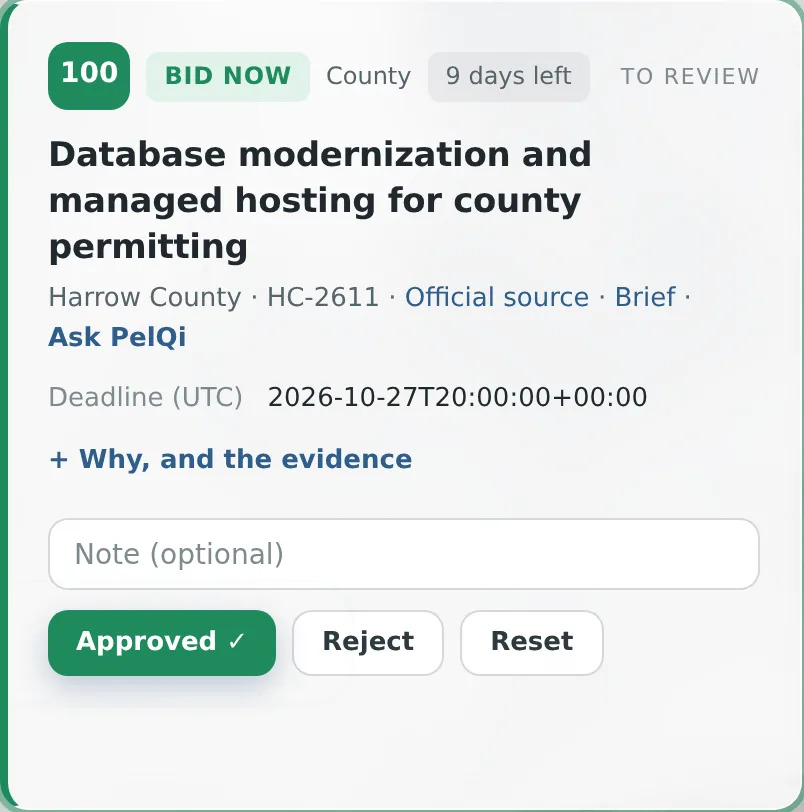
Steps
- Read the card and its evidence, and open the official source
- Add a note if you like, for example who owns the response
- Press Approve
What you should see
The button changes to Approved with a tick, a short sound plays, the counters update, and after a moment the card leaves the review view. It is now in Capture log and Export.
What it can and cannot do
It can
- Record an approval with its time and note, and add it to the export and log
It cannot
- Approve an item with a blocker
- Send anything to the buyer or employer
If it does not work
- No Approve button: something blocks approval. See Why there is no Approve button.
- Notice changed; reload and review the current evidence: see Notice changed.
- Approval blocked: see Approval blocked.
Related articles
- Reject, or put an item backReject takes an item out of the review queue; Reset puts any item back to review.
- Add a note to a decisionAn optional note of up to 2,000 characters is saved with each decision and shown in the log and export.
- Export approved work as CSVExport downloads reviewed-opportunities.csv with every approved item, ready to import into your CRM.
Still stuck? Contact support, or browse all articles.